To compress a PDF without making it unreadable, start with the gentlest option: a lossless clean-up that removes waste without touching the text or images. If the file is still too big, the images inside it are almost always the cause, so deal with those next, and only use the strongest setting, which turns each page into a picture, when nobody needs to select, search or copy the text. Always open the compressed copy and zoom in before you send it.
Why is your PDF so big?
Page count rarely explains file size. A long contract of plain text can be smaller than a single scanned page. The usual culprits are:
- Scanned pages. Every page of a scan is an image. Scanning in full colour at a high resolution produces very large files, even for black-and-white paperwork.
- Photos at full camera size. A product sheet with photos straight from a phone carries millions of pixels nobody will see on screen.
- Embedded fonts. PDFs carry the fonts they use so they look the same everywhere, and several unusual fonts add weight.
- Leftovers from editing and merging. Some programs save changes by adding to the end of the file instead of rewriting it, and merged files can carry duplicate resources.
- Extras. Attachments, form data, layers and metadata.
A quick test: try to select some text. If you cannot, the PDF is made of images, and image compression is where the savings are.
Lossless and lossy compression
Lossless compression makes a file smaller without throwing anything away. The text, fonts and images are exactly the same afterwards. The savings are usually modest, especially on files that were well made to begin with.
Lossy compression discards detail to save much more space. That is fine for photos viewed on screen, but risky for small print, fine lines, stamps and numbers.
Most PDF compressors combine the two. The skill is knowing how far to go.
Choosing a compression mode
Desirly's free compress PDF tool runs in your browser, so your file is not uploaded, and offers two approaches:
- Lossless clean-up tidies the file's internal structure and removes waste. Text stays as real, selectable text and nothing visible changes. This is the right first step for most documents.
- Strong mode turns each page into an image. This can shrink scans and photo-heavy files dramatically, but the result is a picture of each page: text can no longer be selected, searched or copied, links are likely to stop working, and screen readers cannot read it. GOV.UK's guidance on accessible documents makes the same point, noting that screen readers cannot read text that is part of an image.
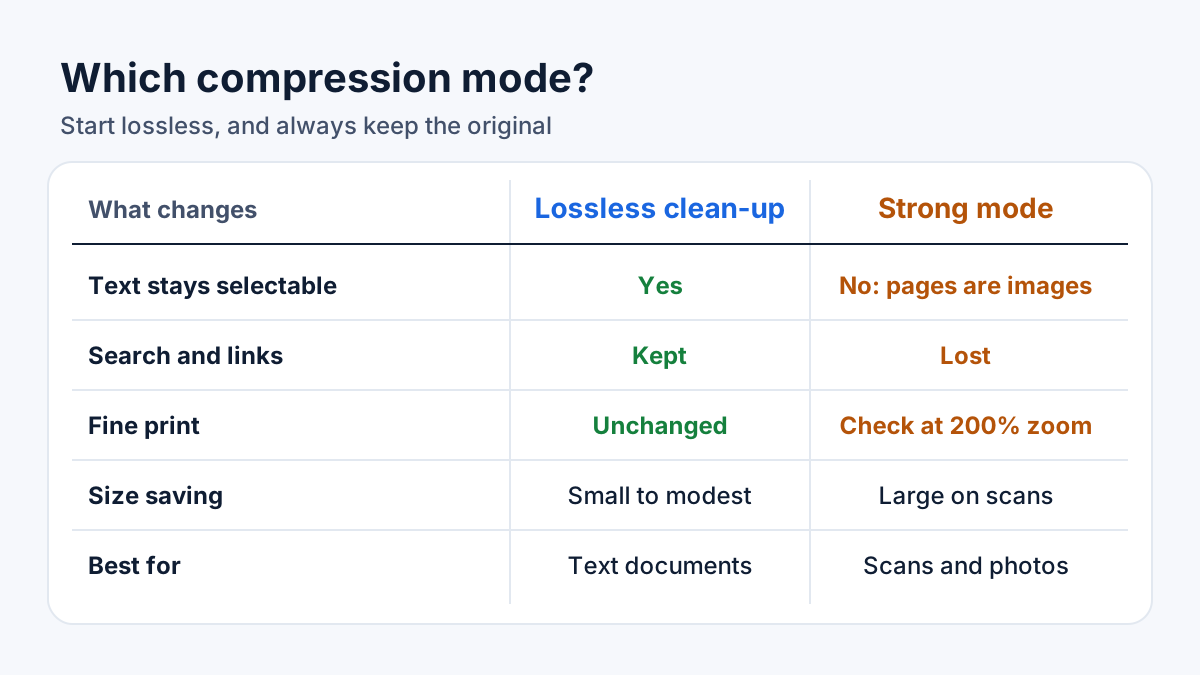
Try lossless first. Use strong mode only when the file is mostly scans or photos and nobody needs to copy the text.
Step by step: compress a PDF safely
- Keep the original. Compress a copy, never your only version.
- Know your target. At the time of writing (October 2026), Google says the attachment limit for personal Gmail accounts is 25 MB. Microsoft says Outlook's limit is 20 MB for internet accounts such as Outlook.com or Gmail, and 10 MB by default for Exchange business accounts, with the email itself counting towards the total. Online forms and portals set their own limits, so check the upload page.
- Run a lossless clean-up first. If that gets you under the limit, stop there.
- If it is still too big, look at what is inside. For scans and photo-heavy files, try strong mode, or fix the images at the source (see below).
- Check the result using the checklist further down.
- If the text is fuzzy, step back. Return to the original and try a gentler approach.
Fix the problem at the source
Compressing after the event works, but you often get a smaller and sharper file by creating it properly in the first place.
If you create PDFs from Office files
When you save Excel or PowerPoint files as PDFs, Microsoft offers a choice between Standard, for high print quality, and Minimum size, for when file size matters more than print quality. Shrinking large photos inside the document before you export helps too.
If you build a PDF from photos
Shrink the images first. Run them through the image compressor, which handles batches, shows a before and after preview and lets you set the quality, then combine them into a PDF. Our guide on compressing images without losing quality explains how far to push the quality setting.
If you scan paperwork
Scan text documents in greyscale or black and white rather than colour, and pick a sensible resolution rather than the scanner's maximum. If you plan to run OCR to make the text searchable, keep it at around 300 dpi, which the Tesseract OCR engine's documentation gives as the minimum for best results.
If the PDF is really a set of pictures
A photo lookbook, a scanned poster or a one-page flyer for social media may work better as images. Convert the pages with the PDF to JPG converter, then compress the images. This is not suitable for contracts or anything people need to search.
A worked example
Here is a hypothetical example. You need to email a signed 24-page agreement to your accountant. It was scanned in colour at the scanner's highest setting and the PDF is 38 MB, too big for email.
- A lossless clean-up saves very little, because almost all of the file is scanned images.
- Strong mode makes it much smaller, but when you check the result, the small print on page 18 is hard to read.
- You rescan the agreement in greyscale at 300 dpi instead. The new file is a fraction of the size, the small print is sharp, and a lossless clean-up brings it comfortably under the limit.
- You keep the original high-quality scan in your records and email the smaller copy.
Exact sizes depend on the document, but the lesson holds: fixing the source usually beats squeezing harder.
Checklist: is it still readable?
Before you send a compressed PDF, open it and check that:
- The smallest text on the page is readable at 100% zoom.
- Prices, dates, account numbers and reference numbers are crisp at 200% zoom.
- Signatures, stamps and handwritten notes are still visible.
- Charts and colour-coded tables can still be told apart.
- Text can still be selected, if the recipient needs to search or copy it.
- The page count matches the original.
- It opens and reads properly on a phone.
If you are combining several files, compress once at the end rather than each file separately. Our guide to merging, splitting and reordering PDF pages covers that step.
When a file is too big to send, start with a lossless clean-up in the free compress PDF tool and only go further if you need to.
Frequently asked questions
Does compressing a PDF reduce the quality?
Lossless compression does not change what you see. Stronger compression reduces image detail, and turning pages into images removes selectable text, so always check the result before you send it.
Why did my PDF hardly get any smaller?
It may already be well compressed, or it may be mostly text, which takes up little space anyway. If it is mostly scanned images, you need stronger image compression or a better scan.
How small can I make a PDF?
There is no fixed answer. It depends on the number of pages, how much of each page is image and how much detail you need to keep. Start with lossless, check the size, then decide whether you need to go further.
Sources
- Google Gmail Help: Send attachments with your Gmail message
- Microsoft Support: Reduce attachment size to send large files with Outlook
- Microsoft Support: Save or convert to PDF in Office desktop apps
- Tesseract documentation: Improving the quality of the output
- GOV.UK: Publishing accessible documents
This guide is general information, not legal, tax or financial advice. Fees, rules and thresholds change, so check the official source before you act. Spotted something out of date? Tell us and we will review it.