To merge PDF files, add them to a merge tool, put them in the order you want, combine them and save the result under a new name. Splitting does the opposite, pulling chosen pages out into separate files, while an organise tool lets you reorder or delete pages inside one document. All three jobs can be done for free in a web browser, and Mac users can also do them in Preview.
When you need each tool
Most small businesses handle PDFs every week: supplier invoices, quotes, delivery notes, statements and scanned paperwork. Page tools save a lot of fiddling.
- Merge when several files belong together. For example, a month of purchase invoices for your bookkeeper, or a quote, specification sheet and terms combined into one document for a customer.
- Split when one file contains things that should be separate. A scanned bundle of receipts, a long statement where you only need two pages, or a catalogue where each section goes to a different buyer.
- Organise when the pages are right but the order is not. Scanners often feed pages in reverse, add the blank backs of single-sided sheets, or turn a landscape page on its side.
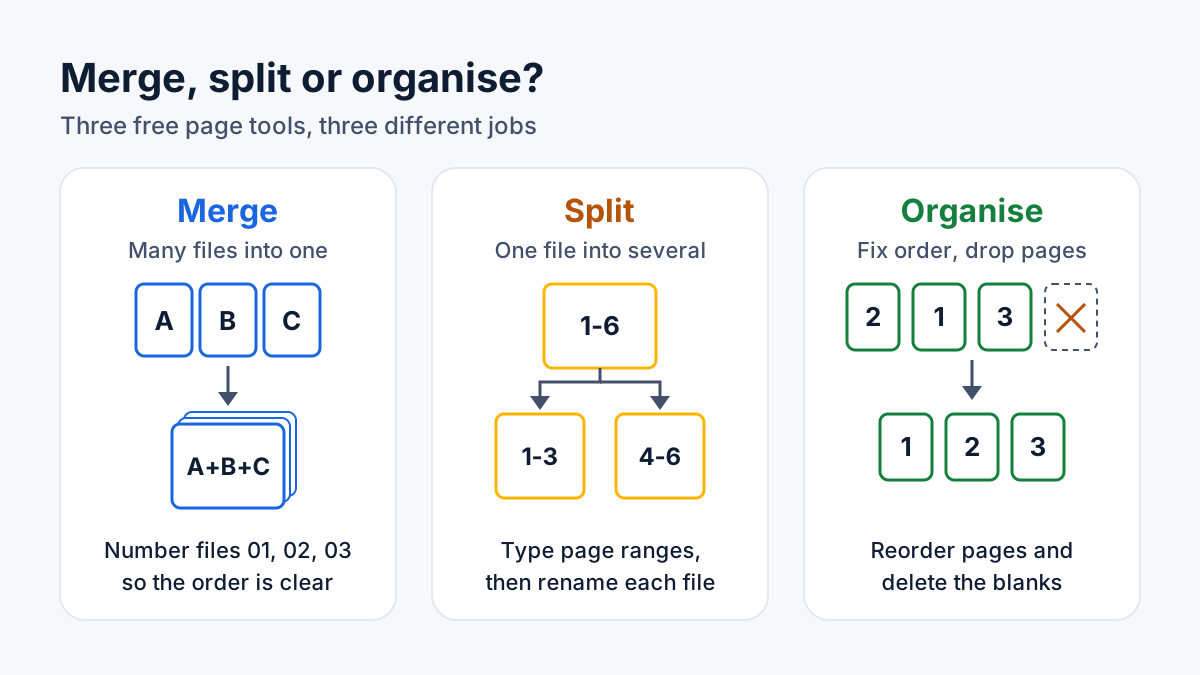
Merge, split and organise each solve a different problem, and you will often use them together.
How to merge PDF files
- Gather the files in one folder. Rename them with a number at the start, such as
01-quote.pdf,02-spec.pdfand03-terms.pdf, so the right order is obvious. - Open the free merge PDF tool and add your files. It runs in your browser, so the files are not uploaded to a server.
- Check the order before you combine them. It is far easier to fix now than afterwards.
- Merge and download. Save the result under a new, descriptive name, for example
2026-09-purchase-invoices.pdf, and keep the separate originals. - Open the merged file and page through it from start to finish.
What can go wrong when merging
- Password-protected files. An encrypted PDF needs unlocking first, which you should only do if you know the password and are entitled to change the file. Our guide to password-protecting and unlocking PDFs covers this.
- Digitally signed documents. A merged file is a new document, so a digital signature from one of the originals will not carry over as valid. Keep the signed original as your record and treat the merged copy as a convenience.
- Fillable forms. Form fields may not behave as expected once combined, especially if two forms use the same field names. Fill in and save forms before merging, then check the fields in the merged copy.
- Bookmarks and links. A clickable contents list or internal links may not survive. If they matter, test them.
- Mixed page sizes. Combining A4 with US Letter or landscape pages works, but the document will look uneven when printed.
- File size. A merged file is roughly the size of its parts added together. If it is too big to email, see how to compress a PDF without making it unreadable.
How to split a PDF
Splitting creates new files from parts of an existing one. The original is not changed.
- Open the split PDF tool and choose your file.
- Decide which pages you want as separate files. In a long document, jot the ranges down first, for example "1-3" for the first invoice and "4-5" for the second, so you do not lose track.
- Split, download and rename each file straight away.
page-4-5.pdfmeans nothing next month;2026-09-14-acme-invoice-1182.pdfdoes.
If you only need a few pages of a Word document as a PDF, you do not need to split anything afterwards. Word's Save As PDF option has a page range setting, so you can create a PDF from only the pages you choose.
How to reorder, rotate and delete pages
Open the organise PDF tool to reorder pages or delete the ones you do not want. Desirly also has a separate rotate tool for pages that came out of the scanner sideways or upside down.
A good routine for a messy scan:
- Delete blank pages and accidental duplicates first, so there is less to look at.
- Rotate anything that is sideways or upside down.
- Reorder what is left into the right sequence.
- Save as a new file and check it once more.
On a Mac
Preview can do much of this without extra software. Apple's instructions are to open the PDFs, choose View > Thumbnails, then drag thumbnails from one document's sidebar into the other to combine them, or drag thumbnails within a sidebar to reorder pages. Apple also points out that Preview saves changes automatically, so duplicate your originals first with File > Duplicate.
A worked example: month-end paperwork for your bookkeeper
Here is a hypothetical example. At the end of September you have 14 supplier invoices that arrived by email as PDFs, plus a three-page scan of paper receipts. In the scan, one receipt is sideways and the back of one sheet came through as a blank page.
- Open the scan in the organise tool, delete the blank page and save it. Use the rotate tool to fix the sideways receipt.
- Rename the 14 invoices so they sort by date, for example
2026-09-03-supplier-name.pdf. - Merge the invoices and the cleaned-up scan into one file, in date order.
- Check the page count adds up: 14 invoices (some may run to two pages) plus the receipt pages.
- If the file is too large to email, compress it.
- Send it, and keep the individual originals in your records folder.
What used to be 15 separate attachments is now one tidy file your bookkeeper can work through in order.
Checklist before you send a merged PDF
- The page count matches what you expect.
- Pages are in the right order and the right way up.
- There are no blank pages, duplicates or stray pages from other documents.
- Nothing is included that the recipient should not see, such as another customer's details on the back of a scanned sheet.
- The file name says what it is and when it is from.
- The file is small enough for email or the upload form you are using.
- Sensitive documents are protected. The ICO's security advice for small organisations suggests considering encryption or password protection when you send documents, and sending the password separately.
If you have a stack of files to combine, try the free merge PDF tool and keep your originals until you have checked the result.
Frequently asked questions
Can I merge PDF files without Adobe Acrobat?
Yes. Browser-based tools, including Desirly's free merge tool, combine PDFs without paid software, and Preview on a Mac can do it too.
Does merging PDFs reduce the quality?
Merging normally copies pages across as they are, so text and images should look the same. Compression is a separate step, and that is where quality can change.
Is it safe to merge confidential PDFs online?
It depends on the tool. Many services upload your files to their servers. Desirly's PDF page tools run in your browser, so the files are not uploaded. For very sensitive documents, still follow your own data protection policies.
How do I remove a single page from a PDF?
Open the file in the organise tool, delete the page and save the result as a new file. Alternatively, split out just the pages you want to keep.
Sources
This guide is general information, not legal, tax or financial advice. Fees, rules and thresholds change, so check the official source before you act. Spotted something out of date? Tell us and we will review it.